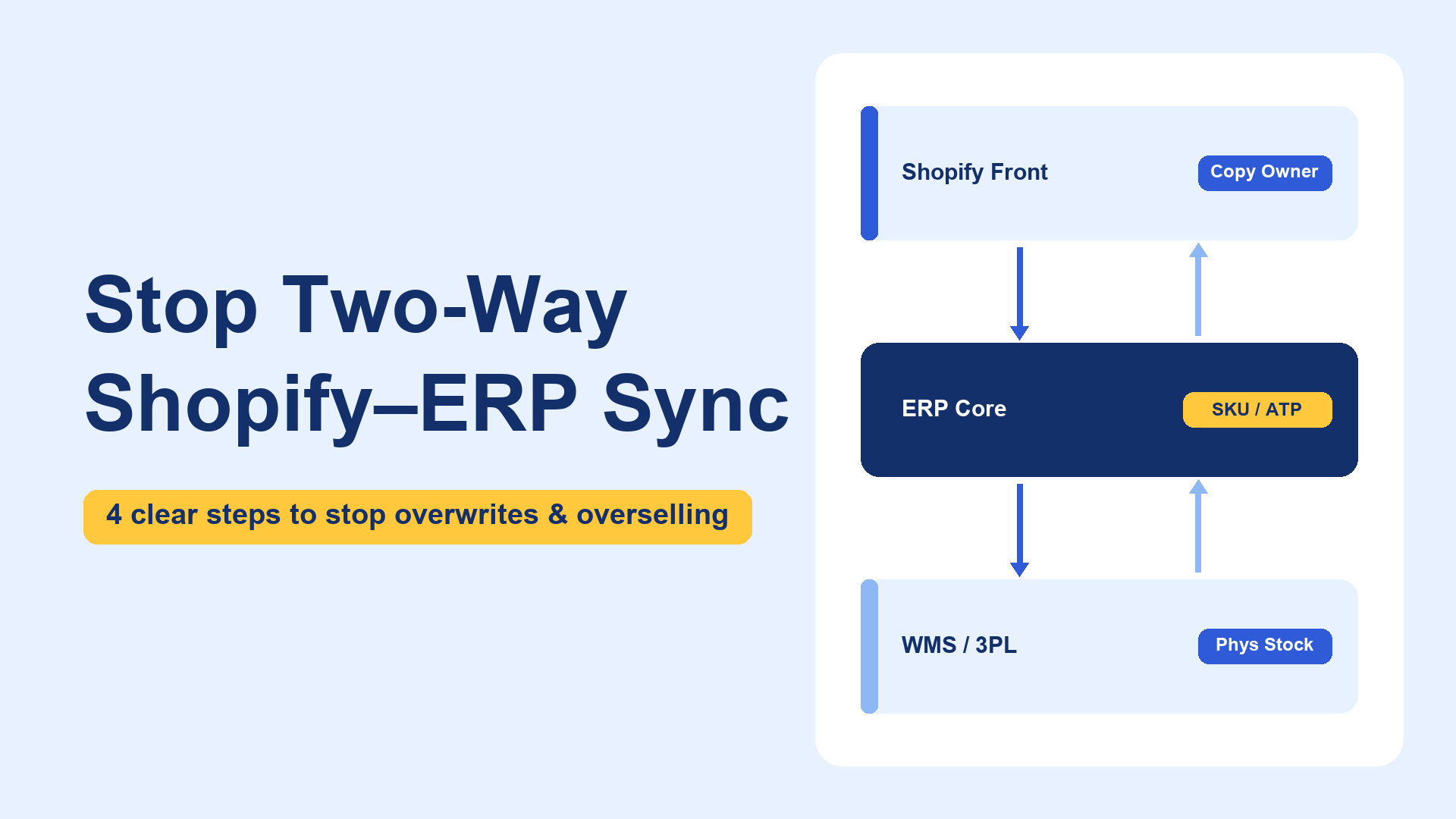

TL;DR: Turning on unrestricted “two-way real-time sync” is the fastest way to break a Shopify ERP integration. Even when every sync log looks green, overlapping edit permissions let your ERP wipe out storefront product copy, while constant polling triggers rate limits and flash-sale overselling. Follow four plain-English steps before launch: split edit rights across four areas, push only real sellable stock, switch to event-based queues, and cover bundles, returns, and nightly checks before rolling out in phases.
Your merchandising team spends all afternoon polishing Shopify titles and product photos—only to find everything overwritten the next morning by raw internal warehouse codes. Half an hour into a flash sale, the warehouse is completely out of stock, yet your storefront keeps taking paid orders. You ask engineering what happened, and they show you the dashboard: every single sync job is green.
If you are planning a Shopify ERP integration—or tired of putting out fires after launching one—this guide walks you through three clear parts: why “two-way real-time sync” makes your systems fight each other, four practical steps to lock down clean rules before launch, and direct answers to three questions teams ask most often.
1. Why Does “Two-Way Real-Time Sync” Make Shopify and Your ERP Fight?
When teams start an ecommerce ERP integration, the first request almost always sounds convenient: “Connect Shopify and our ERP so products, orders, and inventory sync both ways in real time.” In real life, that single request causes most post-launch headaches.
The reason is simple. Your merchandising team edits titles, descriptions, and images in Shopify to help shoppers buy. Your purchasing and warehouse teams maintain product codes, landed costs, and shelf counts in the ERP to ship accurately and track margins. When both systems are allowed to overwrite the same record, an overnight ERP update wipes out curated storefront copy—and one accidental SKU edit on Shopify leaves warehouse pickers unable to find the right box.
Flash-sale overselling comes from two equally simple causes. First, the total number of boxes sitting on a warehouse shelf is not the number you can actually sell—some units are already promised to other channels, and others are uninspected returns waiting in quarantine. Second, many setups rely on scheduled scripts that hammer Shopify every few minutes. The moment sale traffic spikes, Shopify throttles those requests, stock updates stall in line, and the storefront keeps selling items you no longer have.
2. How to Fix It: 4 Clear Steps to Make Your Setup Reliable
You do not need the most expensive middleware on the market, and you do not need to read low-level code. Sit down with merchandising, warehouse ops, finance, and engineering before launch and lock down these four steps.
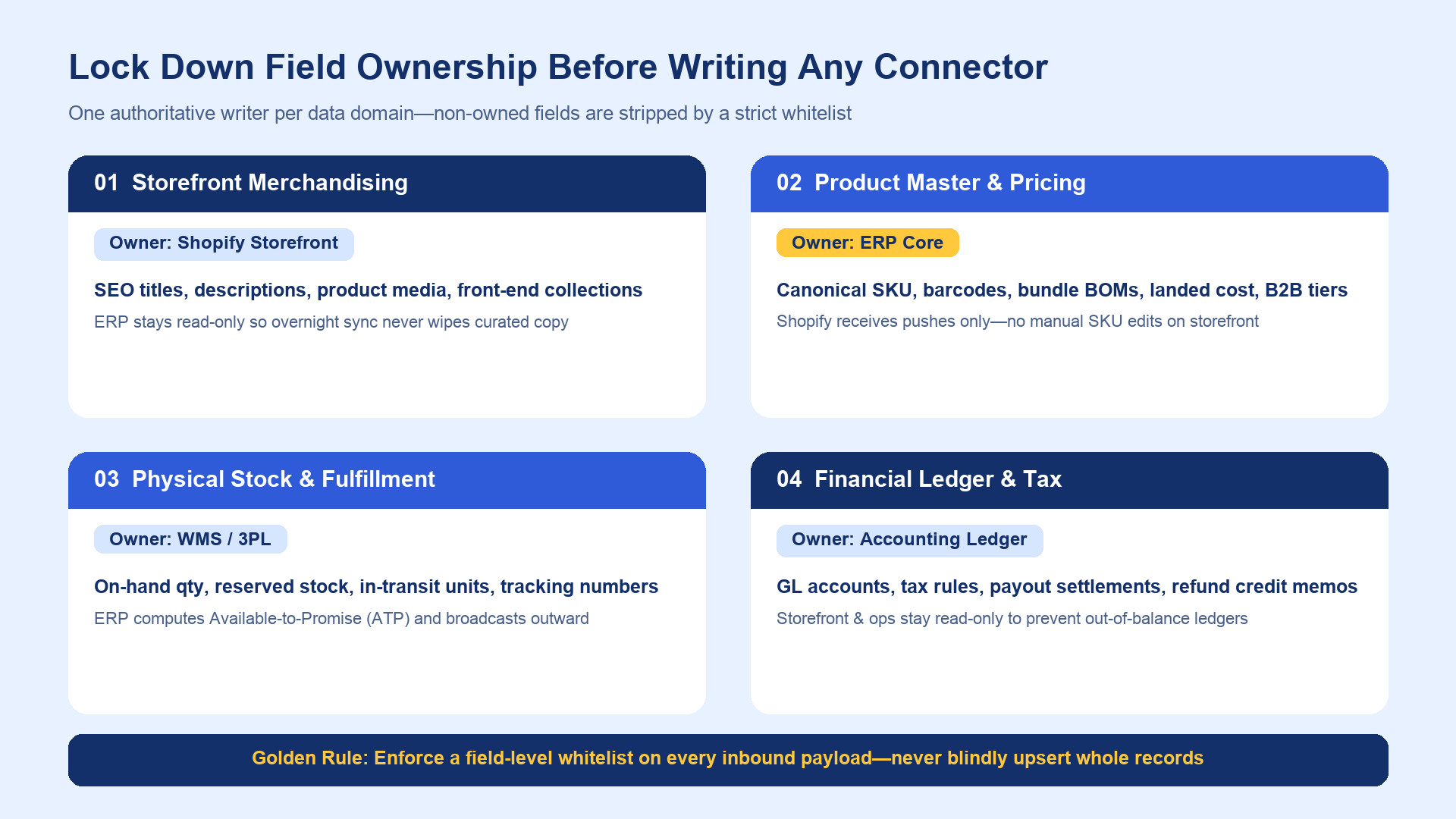
Step 1: Split Who Can Edit What Across 4 Areas
Before anyone writes a connector, agree on one simple rule: only one system gets edit rights for each type of data. Every other system is strictly read-only on those fields.
- Shopify Storefront: Owns product titles, descriptions, photos, videos, and front-end collections. Your ERP never touches storefront copy.
- ERP Core: Owns official product codes (SKUs), bundle recipes, landed costs, and pricing tiers. Shopify only receives updates pushed from the ERP.
- Warehouse / 3PL: Owns physical shelf counts, reserved stock, incoming shipments, and outbound tracking numbers.
- Finance & Accounting: Owns general ledger entries, tax rules, payout settlements, and refund adjustments, keeping original order records read-only.
What you get after this step: Your sync layer only accepts approved fields from the right owner and quietly ignores everything else. Merchandising never wakes up to wiped-out product pages again.
Step 2: Only Push Stock You Can Actually Sell
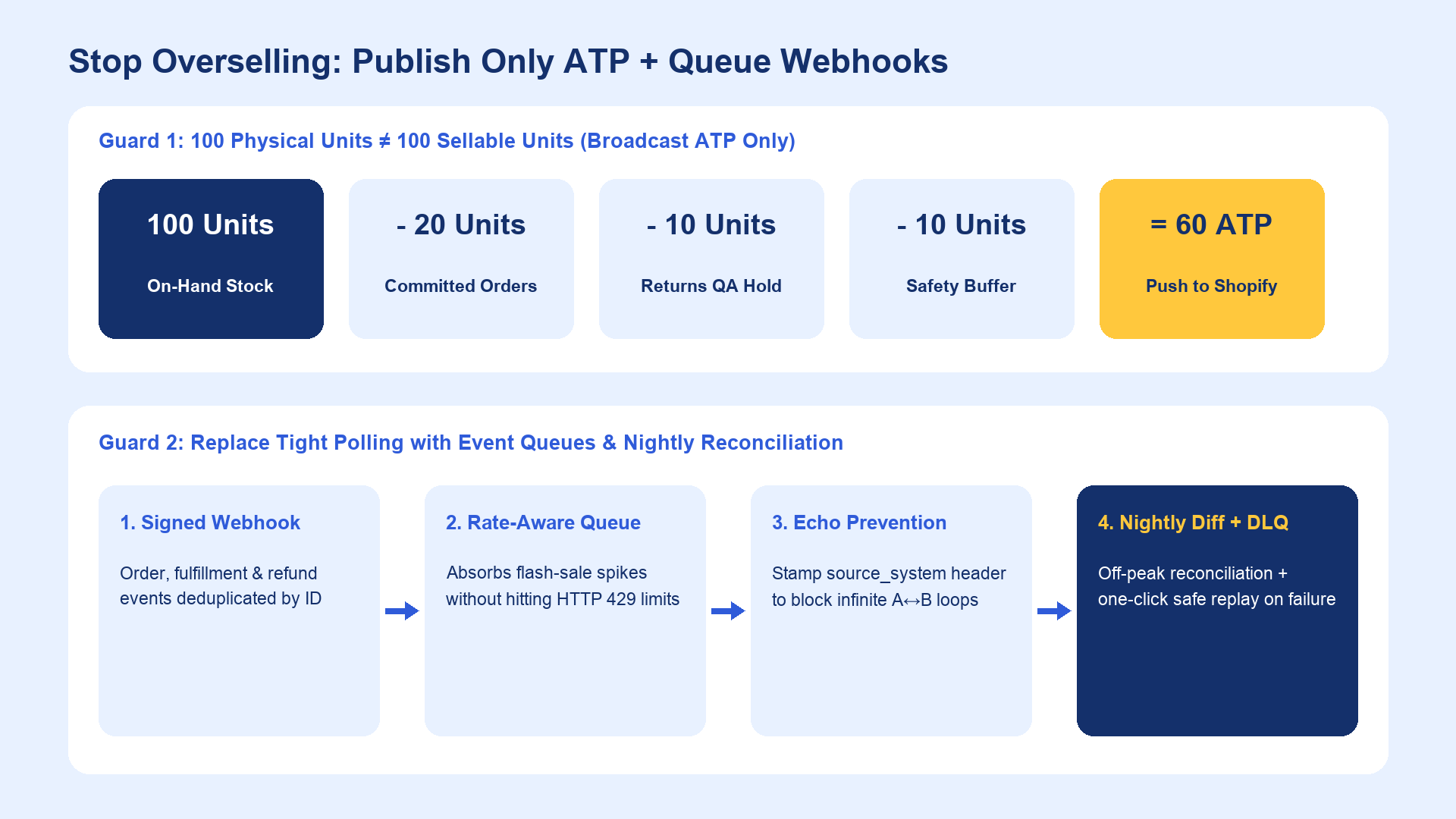
Never push raw warehouse shelf totals straight to Shopify, and never let Shopify and your warehouse subtract stock independently on separate timers. In multi channel ecommerce inventory management, your ERP should calculate one clean sellable number using a single formula:
Real Sellable Stock = Physical On-Hand Units − Reserved Orders − Uninspected Returns − Safety Buffer
Take a concrete example. Suppose your warehouse holds 100 physical units. If 20 units are already reserved by another sales channel, 10 units are customer returns waiting for quality inspection, and you keep 10 units as a safety cushion, the ERP should push exactly 60 sellable units to Shopify. If you operate multiple regional warehouses, tie each regional store to its closest primary warehouse and automatically pause secondary channels when a bestseller drops below its safety cushion so your main store never oversells.
What you get after this step: Every storefront displays real, spendable inventory after holds and damaged returns are removed, stopping sales channels from fighting over the same last few units.
Step 3: Switch From Constant Polling to Event-Based Queues
Turn off scripts that pull your entire catalog every few minutes. Replace them with a calmer workflow: notify only when something actually happens, place events in a queue, and process them at a steady pace.
In practice, that comes down to four straightforward habits:
- Trigger an instant notification only on real events—when a customer places an order, a warehouse ships a parcel, or support issues a refund.
- Check each event’s unique order ID at the door so the same order is never counted twice, then drop it into a queue that feeds updates steadily within Shopify’s rate limits.
- Tag every outgoing update with the system that sent it so System A and System B never bounce the same change back and forth in an endless loop.
- When a midnight timeout or missing tax rule causes an error, save the raw order in an exception queue, send an immediate team alert, and let ops replay that exact order with one click once the setting is fixed.
What you get after this step: Traffic spikes queue smoothly without crashing against API limits, and overnight hiccups never silently drop paid orders.
Step 4: Cover Bundles, Returns, and Nightly Checks—Then Roll Out in Phases
Standard plug-and-play apps often look fine for a small single-warehouse store, then break as soon as real-world complexity arrives. Plan for three everyday scenarios up front:
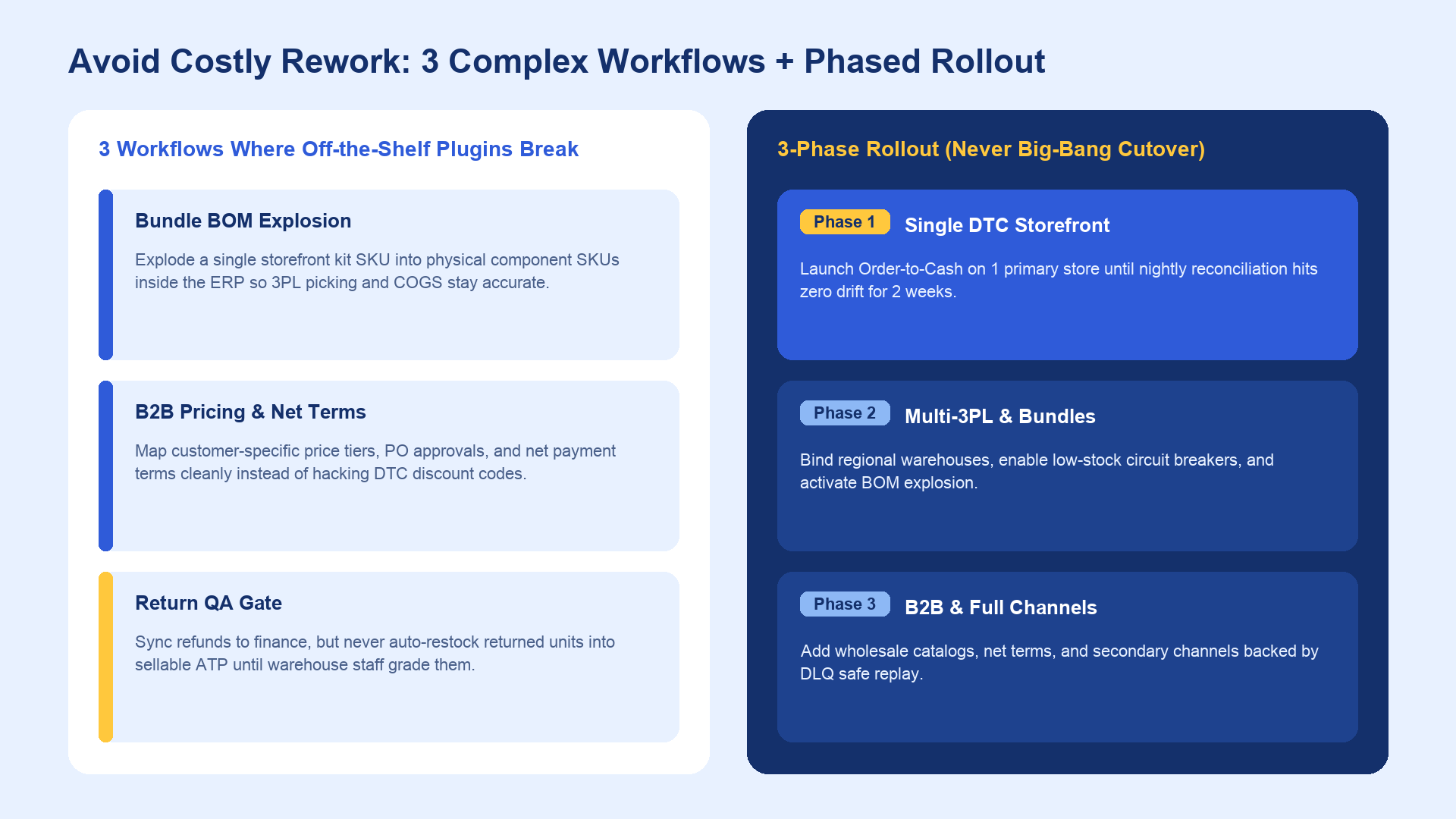
- Bundles and kits: If Shopify sells a “3-Piece Starter Kit” as one storefront item, your ERP must automatically split it into the three physical pieces for warehouse pickers so fulfillment and profit margins stay accurate.
- Wholesale pricing and net terms: If your store also serves B2B buyers, map customer-specific price tiers and payment terms cleanly instead of rigging fragile retail discount codes.
- Returns require inspection first: Refund entries should sync to finance right away, yet returned items must never jump back into sellable stock automatically until warehouse staff scan and approve them as sellable.
Pair those rules with a scheduled nightly full check that compares orders and stock across Shopify, your ERP, and your warehouse while traffic is quiet, flagging any mismatch before morning. Finally, avoid flipping everything live on one day: start with one main storefront until nightly checks show zero drift for two straight weeks, then add extra warehouses, bundles, and wholesale step by step.
What you get after this step: Launch risk stays contained to one store, and expanding into new warehouses, gift bundles, or B2B never forces a painful rebuild.
3. 3 Questions Teams Always Ask
We only process a few hundred orders a day—do we really need a queue and nightly check?
Yes—even a lightweight version saves far more time than direct syncing. Network timeouts and platform limits happen at 2:00 AM whether you process 200 orders a day or 20,000. Spending one or two extra days adding a basic queue and nightly check upfront prevents months of late-night spreadsheet troubleshooting later.
Can we stick with off-the-shelf Shopify–ERP apps, or when should we build custom logic?
Standard apps work well for one store, one warehouse, and simple single-item products; move to custom integration once multi-warehouse routing, bundle splitting, wholesale terms, or strict accounting rules enter the picture. Plug-and-play tools move standard fields fast, yet patching around regional stock pools and return inspections quickly costs more to maintain than a clean custom flow.
Our live sync is already out of whack—how do we switch safely without pausing sales?
Turn off conflicting edit permissions first, then run one clean baseline alignment during off-peak hours. Never run a blind full overwrite during busy daytime traffic. Start by blocking ERP overwrites on storefront copy and storefront edits on official SKUs, generate a side-by-side mismatch list with ops, and sync once from each agreed owner—most teams stabilize within a week.
A calm peak season rarely depends on buying the priciest integration tool—it comes down to agreeing on edit ownership, real sellable stock, queued event sync, and phased rollout before you connect the wires. Bookmark these four steps for your next kickoff meeting, and share the trickiest sync headache your team has run into in the comments.